

IT Staff Services
Resource hub for staff needing support with technology and digital tools on campus.
IT Staff Service Catalogue
E fana ka tshedimošo ka ga go fihlelela imeile ya yunibesithi, go hloma Wi-Fi, le go taonelouta disoftware tše bohlokwa. Letlakala le akaretša gape thušo ya go laola diphasewete le go šomiša diforamo tša go ithuta inthaneteng. Go na le dikgokagano go methopo ya thekgo ya theknolotši, go akaretšwa dipotšišo tše di botšišwago gantši le ditlhahlo tša tharollo ya mathata
Staff Self Services
IT Services provides Staff with Internet access via wide connection in offices and Wi-Fi at hotspots. VUT uses network infrastructure to provide its students and staff with connectivity for various activities such as to access online learning servers and other academic digital materials (Research), for collaboration among staff members for operational purposes, etc.
Staff Wi-Fi
VUT_STAFF is available to all VUT staff. Authentication information used for SSID VUT_STAFF requires staff member email credentials: “Username”@vut.ac.za and password as email password. Tobetsa mo go lebelela tlhahlo ya kamoo o ka kgokaganago le Eduroam.
Working Remotely:
Our department assists with connectivity to allow you to work from any location at any given time via Microsoft Outlook, Teams, and SCCM, in enhance staff’s work-life, well-being, and productivity.
VPN
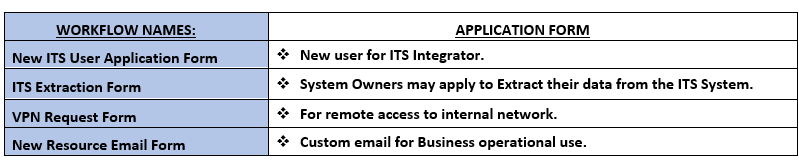
VUT enables you to access internal network resources remotely via a virtual private network. Access is requested by filing in a VPN access request form that is available on the VUT intranet (SharePoint).
Security:
It is essential to be protected from spam, phishing attempts and other potential threats while working online. Devices on the VUT network are secured with Anti-virus software, software patches and updates whenever required. Report any potential cyber security threats to VUT IT Services department via email or telephonically.
Microsoft 365 ya go swana le yona
VUT in collaboration with Microsoft gives its students and staff access to Microsoft office 365 packages. All you need is your VUT students/staff email address and the email password. To connect to Microsoft Office 365, Click https://office365.com/ gomme o šomiše aterese ya gago ya imeile ya Outlook ya bašomi ba VUT goba aterese ya imeile ya moithuti ya Google bjalo ka leina la mosediriši le phasewete ya gago ya imeile go tsena.
Imeile
Microsoft Outlook emails accounts are intended for active VUT employees to be used for communication purposes with other VUT stakeholders. Microsoft Outlook Email for staff is available as a part of the Microsoft Office suite. It allows staff to manage their calendars, tasks, contacts and more. Login credentials are the staff’s VUT email address and password and it can be accessed from https://vut.ac.za/staff/ or from Microsoft Office 356 on https://office365.com/
Phones
VUT’s phone system provides a high-quality, reliable, secure, and cost-effective voice communication environment and covers managing the Telephone Management System (TMS), and maintenance and configuration upgrades of: PABX, VoIP, DECT, cell routers, voicemail & auto attendant, programming of digital instruments, hardware maintenance. Get access to the staff directory (Rampage). The application can be accessed on https://directory.vut.ac.za
Dihlopha tša Microsoft enables people in two or more locations to communicate simultaneously via video and audio transmission for conference purposes. Access Teams on https://office365.com/ and use your email address and password to login.
Adobe Sign
On request, IT Services grants Staff access to the Adobe Sign service. Click mo to connect
Adobe Sign is a cloud-based e-signature service that allows the user to send, sign, track, and manage signature processes using a browser or mobile device.
Adobe User Transactions Usage Guide
Jasper Reporting System
Is an open source Java reporting tool that can write to a variety of targets, such as: screen, a printer, into PDF, HTML, Microsoft Excel, RTF, ODT, comma-separated values (CSV) or XML files.
Klika mo to connect
SMS
This is an application that VUT is using for communicating with Students and Staff.
In order for staff to have an access they have to fill a form that have to be signed by their line managers.
Klika mo to connect
SAS
Selection and Admission system is a system that is used for admission on new applications online. Users can work from anywhere. The users have the ability to select their best candidates on the system, and approve accordingly. The users can view statistics like how many applications you received for that year, how many are rejected, how many are approved and how many are registered. You can also see stats per qualification on how many applications you have, what is the required number of students and how many are registered, approved and rejected per qualification. To have access to this system, you need to fill in a form and your dean also need to sign the form to confirm that you can have access.
Please be reminded of the Self Service System for password resetting that will both increase the efficiency and improve security of the process.
Klika mo to connect
ITS
ITS is an ERP that brings together most of the University’s administrative resources into one system. The user interface for each person is tailored to them depending upon the roles they have in the University. The administrative systems under the ITS umbrella include iEnabler and Integrator. The Staff ITS iEnabler includes menus such as Lecturer iEnabler, Personnel iEnabler, Personnel Web Appointments, Finance iEnabler, Asset Web, Management Report and more. The login credentials for staff ITS is staff number, ITS pin, and password. Click https://vut.ac.za/its go fihlelela ITS. Tobetsa mo to access a step by step guide of how to reset your ITS pin
Service desk
The Service Desk application is an incident management system available to all active VUT employees to report or log incidents and request services. The application can be accessed on https://servicedesk.vut.ac.za/
Phasewete ya go Itšhireletša
Tirelo ya IT ya Inthaneteng yeo e dumelelago badiriši bokgoni bja go seta phasewete ya bona gape ge e ba e lebetšwe, e fedile nako goba e notletšwe ka morago ga maiteko a mmalwa a go tsena ao a sa atlegago ka bobona.
Ngwadiša dipotšišo tša tšhireletšo
Ngwadiša dipotšišo tša gago tša tšhireletšo e le gore o kgone go seta phasewete ya gago gape nakong e tlago. Klika ngwadiša dipotšišo tša gago tša tšhireletšo
Seta gape sa phasewete
Go seta phasewete ya gago gape ge e ba o e lebetše goba akhaonto ya gago e notletšwe. Tobetsa seta phasewete gape go hwetša phasewete ye mpsha.
Ntšhatša Phasewete
Diriša go mpshafatša go phasewete ye e kgethilwego goba ge e ba o phasewete e fedile nako. Tobetsa mo go Mpshafatša Phasewete.
Desktop Support
Desktop support technicians are usually the first level of support for all desktop computer related incidents. The duties range from remote desktop assistance, physically visiting clients’ sites, providing support over the telephone, to troubleshooting computers related issues.
IT Service desk
IT service desk provides a single point of contact for all staff computer and network related incidents, queries, or services using the Service Desk system, calls and emails. Walk-ins are not permitted. This is to maintain social distance during the Covid-19 pandemic.
The IT Services Helpdesk is responsible for:
- Logging and prioritizing all requests made via telephone, email, and on self-service.
- Assigning the requests to the appropriate technician/IT personnel.
- Escalating service requests when necessary.
Remote support:
The IT Services uses Microsoft System Centre Configuration Manager (SCCM) to manage PCs, Macs, and Unix/Linux servers along with cloud-based mobile devices running Windows, iOS, and Android, all from a single management console. This application allows the IT personnel to assist client remotely.
Staff Self-Service – How to apply for services offered by IT Services using Adobe Sign Workflows
As part of our ongoing commitment to enhance operational efficiency and accuracy within our university, the IT Department is excited to introduce an automated workflow system for IT Services Forms using Adobe Workflow.
This initiative is designed to streamline repetitive and critical business tasks across various departments, and encourage a green and paperless environment, thereby minimizing errors and maximizing overall efficiency.
Key Advantages of Automated Workflows:
- Comprehensive Process Automation: From initiation to completion, our automated workflows ensure seamless execution of tasks, significantly reducing manual errors and increasing efficiency.
- Efficient Document Routing: Each request or document is intelligently routed to ensure smooth progression from one task to the next, expediting process cycles.
- Simplified Signature and Document Management: Eliminate the time-consuming process of chasing down signatures. This process manages signed documents efficiently, ensuring secure storage and easy accessibility.
- Real-Time Insights and Reporting: Stay updated with real-time visibility into document statuses. This process allows for the generation of detailed reports, offering a comprehensive overview of all ongoing processes.
Tobetsa mo for a steps-by-step guide.
Klika mo to login into Adobe and access below IT Services application forms.
Phones
Get access to the staff directory (Rampage). The application can be accessed on https://directory.vut.ac.za
Once connected to the VSA RAMpage Web View website, you will be requested to login with the following credentials:
Login Name: Staff number
Password: Leave field blank and click on LOGIN on the right-hand side
(You are required to enter a new password)
Dintlha tša go Ikgokaganya le Tafola ya Thušo:
- Emeile: it_support@vut.ac.za
- NB: 24hr nako ya go fetoga bakeng sa di-imeile.
- Mola wa Ofisi: . 016 950 9111
- Diiri tša go šoma: 07:45am – 4:30pm Matšatši a beke
- Mafelo-beke a Tswaletšwego
- E tswalelwa ka Matšatši a Maikhutšo
Ditokomane
Staff-Self-Service-PASSWORD- RESET
Staff-Self-Service-FORGOTTEN-ITS-PIN
Staff-Self-Service-PASSWORD-UPDATE
Staff-Self-Service-PASSWORD-REGISTRATION
Staff Self Service – How to Reset ITS Integrator Password
staff self-service-how to apply for services offered by IT services using: adobe sign workflows
Difomo
Request to Purchase IT Equipment
Request for data extraction form
Dipotšišo tšeo di Butšišwago Gantši
Re ka go thuša bjang? Lekola dihlogo tše di lego ka mo tlase bakeng sa tshedimošo e oketšegilego le dipotšišo tšeo di botšišwago gantši mabapi le Ditirelo tša IT.
How to use Self-Service Password
Bakeng sa tlhahlo ya kgato ka kgato tobetsa ka tlase kgokagano:
Phasewete ya go Itšhireletša:
Ngwadiša dipotšišo tša tšhireletšo:
Ngwadiša dipotšišo tša gago tša tšhireletšo e le gore o kgone go seta phasewete ya gago gape nakong e tlago. Tobetsa kgokagano bakeng sa tlhahlo ya kgato ka kgato ngwadiša dipotšišo tša gago tša tšhireletšo
Seta gape phasewete:
Go seta phasewete ya gago gape ge e ba o e lebetše goba akhaonto ya gago e notletšwe. Klika seta phasewete gape go hwetša phasewete ye mpsha.
Ntšhatša Phasewete:
Diriša go mpshafatša go phasewete ye e kgethilwego goba ge e ba o phasewete e fedile nako. Klika Ntšhatša Phasewete bakeng sa tlhahlo ya kgato ka kgato.
Ke fihlelela bjang ITs iEnabler?
Latela ka tlase mohato:
- Eya go vut.ac.za/ya yona
- Kgetha iEnabler
Ke mpshafatša bjang pini ya ka ya ITs iEnabler?
Go mpshafatša o IT's Pin, latela ka tlase kgato:
- Eya go vut.ac.za/ya yona
- Kgetha iEnabler
- Klika kgetho ya fetola pini
- Kenya nomoro ya moithuti le pini ya bjale
- Ebe tobetsa fetola Pin
Bakeng sa tlhahlo ya kgato ka kgato tobetsa ka tlase kgokagano:
Tobetsa mo go fihlelela tlhahlo ya kgato ka kgato ya kamoo o ka setago pini ya gago ya ITS gape.
Ke Lebetše di-IT tša ka iEnabler pin?
Go fihlelela Pin ya ITs ye e lebetšwego, latela kgato ye e lego ka mo tlase:
- Eya go vut.ac.za/ya yona
- Kgetha iEnabler
- Thaepa Nomoro ya Moithuti
- Klika Lebala kgetho ya pini
- Pin e tla romelwa go imeile.
Bakeng sa tlhahlo ya kgato ka kgato tobetsa ka tlase kgokagano:
Tobetsa mo go fihlelela tlhahlo ya kgato ka kgato ya kamoo o ka setago pini ya gago ya ITS gape.
Ke hwetša bjang ITs iEnabler pin?
Go kgopela gore o IT's Pin, latela ka tlase kgato:
- Eya go vut.ac.za/ya yona
- Kgetha iEnabler
- Thaepa Nomoro ya Moithuti
- Klika kgetho ya pini ya kgopelo
- Pin e tla romelwa go imeile.
Bakeng sa tlhahlo ya kgato ka kgato tobetsa ka tlase kgokagano:
Tobetsa mo go fihlelela tlhahlo ya kgato ka kgato ya kamoo o ka setago pini ya gago ya ITS gape.
Ke lokiša bjang phošo ya go tsena yeo e sa atlegego kudu ge ke tsena ka gare ga ITs iEnabler?
O lekile makga a mantši go tsena ntle le phasewete ye e nepagetšego, leka gape ka morago ga metsotso ye 20. E šoma mo matšatšing a beke 8am – 4:30pm ntle le matšatši a maikhutšo.
Ke tsena bjang go Eduroam?
Latela Mehato e ka tlase:
- Dira gore Wi-Fi e šome go Sedirišwa
- Kgetha Eduroam
- Klika Kgokaganya go netiweke
- Thaepa imeile ya gago ya moithuti le AD/Email Password ke moka o klike kgokaganya.
Bakeng sa tlhahlo ya kgato ka kgato tobetsa ka tlase kgokagano:
Tobetsa mo go lebelela tlhahlo ya kamoo o ka kgokaganago le Eduroam.
Ke lebetše phasewete ya ka ya Eduroam?
Ge e ba o lebetše phasewete ya gago gomme o šetše o lebetše ngwadiša dipotšišo tša gago tša tšhireletšo. Klika seta phasewete gape go hwetša phasewete ye mpsha le Login o šomiša imeile ya moithuti le phasewete.
Bakeng sa tlhahlo ya kgato ka kgato tobetsa ka tlase kgokagano:
Phasewete ya go Itšhireletša
Ngwadiša dipotšišo tša tšhireletšo:
Ngwadiša dipotšišo tša gago tša tšhireletšo e le gore o kgone go seta phasewete ya gago gape nakong e tlago. Tobetsa kgokagano bakeng sa tlhahlo ya kgato ka kgato ngwadiša dipotšišo tša gago tša tšhireletšo
Seta gape sa phasewete
Go seta phasewete ya gago gape ge e ba o e lebetše goba akhaonto ya gago e notletšwe. Klika seta phasewete gape go hwetša phasewete ye mpsha.
Ntšhatša Phasewete
Diriša go mpshafatša go phasewete ye e kgethilwego goba ge e ba o phasewete e fedile nako. Klika Ntšhatša Phasewete bakeng sa tlhahlo ya kgato ka kgato.
